
Manual QA Configuration
This article outlines the steps to enable and use the Manual QA feature for sub-users.
Prerequisite
Before proceeding, ensure that the Manual QA feature is enabled for your account.
Configuration Steps
- Log in to the CloudAgent portal as an admin.
- Navigate to: Admin → User Profiles → Select a Profile → Edit → Configuration Access
- Assign one of the following roles:
- QAAuditor
- QAAdmin
Do not assign both QAAuditor and QAAdminroles to the same profile. Only one role should be configured.
- Save the configuration.
- All sub-users associated with this profile will now have access to the Manual QA feature.
Accessing Manual QA
- The sub-user must log in to the VOC portal.
- From the left-hand menu, navigate to Manual Data Report.
- To perform Manual QA:
-
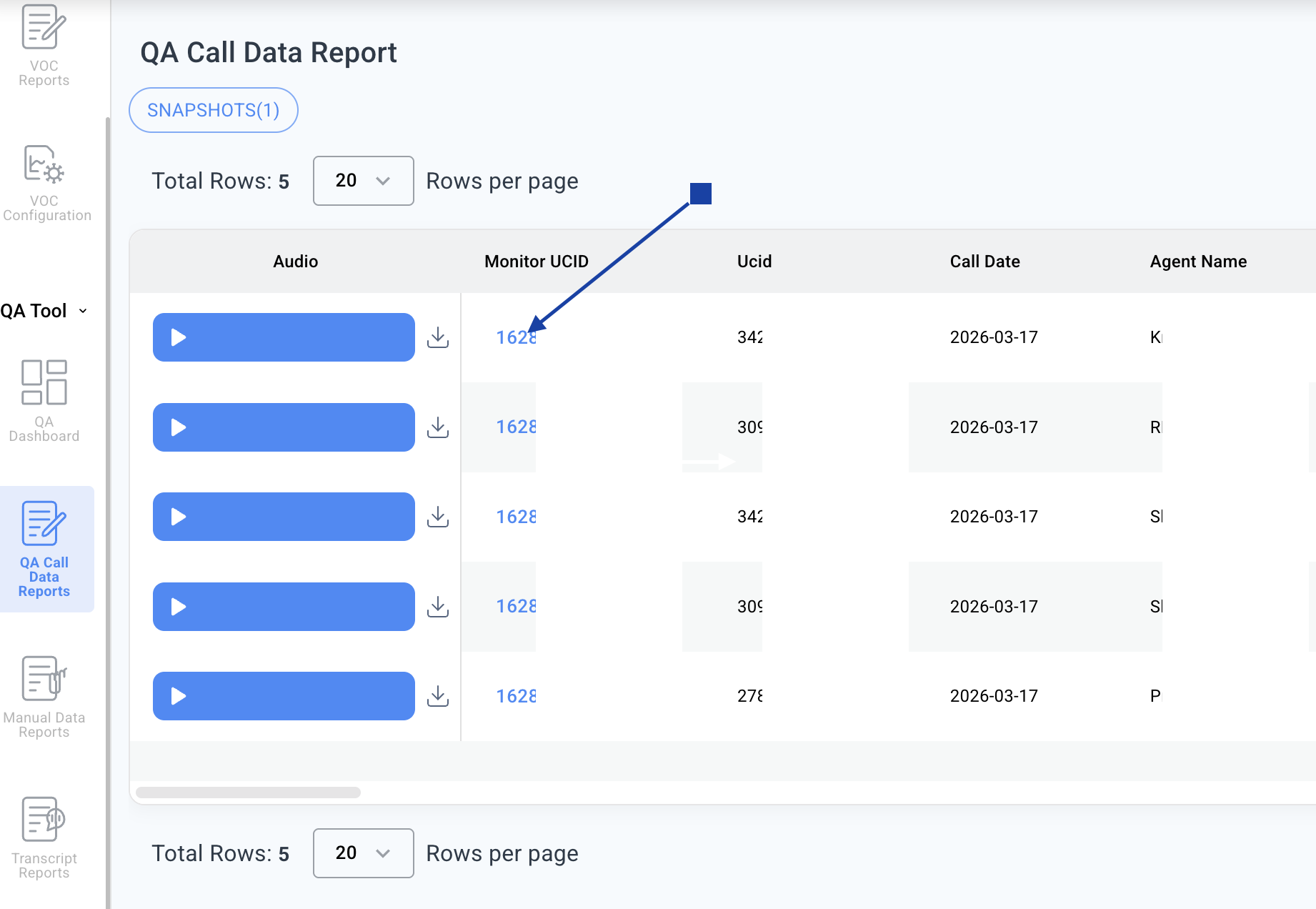
Go to the QA Call Data Report.
-
Click the hyperlink under the Monitor UCID column.
-
Understanding the Columns
-
AI Assessment: Displays the evaluation provided by the AI system.
-
Auditor: If you have the Auditor role, you can provide your manual evaluation in this column.
-
Admin: If you have the Admin role, you can review or manage the audit entries.
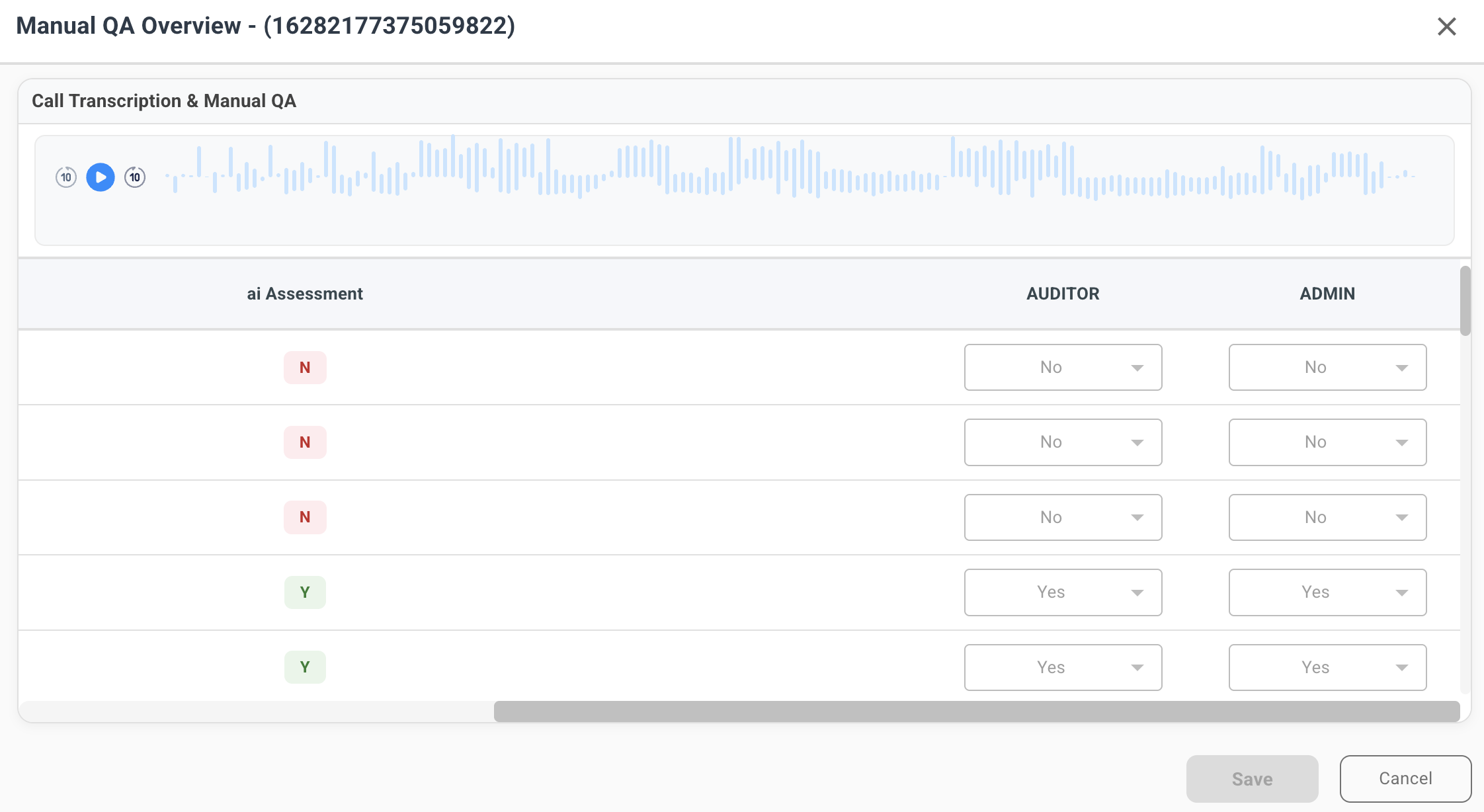
Once configured, users can access the Manual QA feature through the VOC portal and perform audits directly from the QA Call Data Report.
Updated 7 months ago