
WhatsApp Campaigns
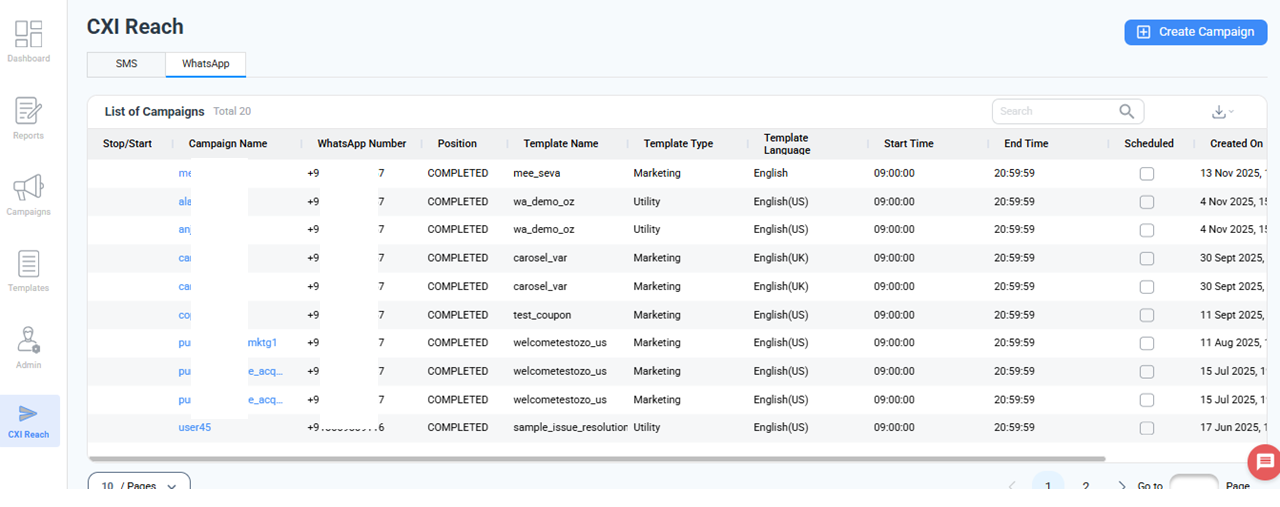
CXI Reach also enables you to send WhatsApp notifications and promotional messages using pre-approved templates.
You can personalize messages, schedule delivery, and upload customer lists just as easily as SMS campaigns.
How to Create a WhatsApp Campaign
Follow these steps to configure and launch a WhatsApp campaign:
Campaign Details
- Campaign Name: Enter a meaningful name to identify your WhatsApp campaign.
- Callback URL: Provide the endpoint where WhatsApp delivery updates and statuses will be sent.
- WhatsApp Number: Select the WhatsApp-enabled number configured in your account (WABA number).
Template & Personalization
- Template Name: Choose a WhatsApp template that has already been approved in your WhatsApp Business Account.
- Template Category
- Simple: No variables or personalization.
- Dynamic: Allows the use of variables. E.g., [Name], [order_id].
- Template Variables
- If you add variables here, the system will use the values provided in this section.
- If left blank, the platform will use the variable values supplied through the uploaded data file.
Scheduling & Customer Data
- Schedule Time: Configure the start and end time for your WhatsApp campaign.
- Upload Type: Choose how you want to upload customer numbers:
- Simple Upload: Enter numbers manually, separated by commas.
- Bulk Upload: Download the sample file → Add all numbers and variable values → Upload the completed file.
Save & Launch
- Save Campaign: Once all configuration fields are completed, click Save.
Your WhatsApp campaign is now ready and will run according to your schedule.
Updated 11 months ago
Did this page help you?