
SMS Campaigns
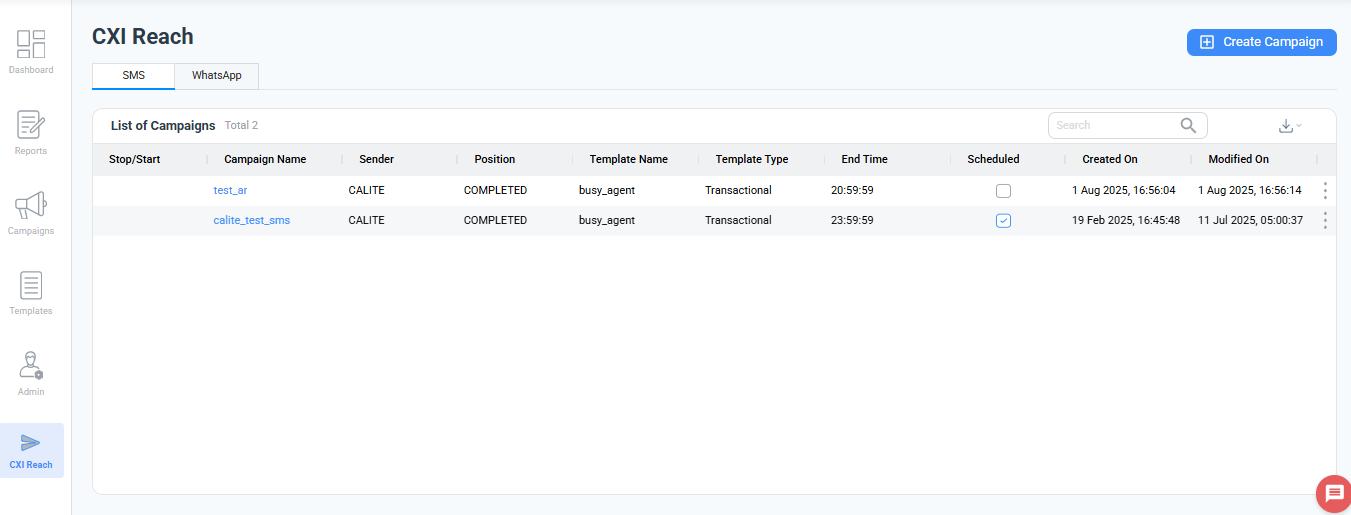
The SMS module allows you to design and send large-scale text campaigns with ease. Follow the steps below to create and launch an SMS campaign.
How to Create an SMS Campaign
Campaign Details
- Campaign Name: Enter a meaningful name to identify your campaign.
- Callback URL: Provide the API endpoint where delivery status updates should be posted.
- Vendor Selection: Choose the SMS vendor configured for your account.
- Sender Selection: Select the sender ID from your approved list.
Template Configuration
- Template Name: Choose from your pre-configured SMS templates.
- Template Category
- Simple – Static message content.
- Dynamic – Supports variables/placeholders for personalized messages.
- Message Content: The system auto-populates the template. You can review or edit it as needed.
Schedule & Target Audience
- Campaign Schedule: Set the start date/time and end date/time for the campaign to run.
- Upload Customer Phone Numbers. Choose one of the following:
- Simple Upload: Enter multiple phone numbers separated by commas.
- Bulk Upload: Download the sample Excel file → Add customer phone numbers → Upload the file.
Save & Launch
- Save Campaign: Once all fields are configured, click Save.
Your SMS campaign is now created and will run based on the scheduled timeframe.
Updated 11 months ago
Did this page help you?